 Make
MakeFree · Browser-only · No account
The ZPL label designer that runs in your browser
MakeZPL is a visual designer for Zebra printer labels. Place text, barcodes, QR codes and logos on a canvas at your printer’s real dot resolution, merge in CSV or JSON data, and export clean, printer-ready ZPL II — without installing software, creating an account, or sending a single label to a server.
Open the designer Paste existing ZPL
- 203 / 300 / 600 dpi
- Code 128 · QR · Data Matrix
- Two-way ZPL import
- CSV & JSON merge
- Runs offline after load
Start with the job you came here to do
Six ways in. Every one of them is free, needs no account, and keeps your label data in your own browser.
Design a label
The full WYSIWYG designer: text, barcodes, QR, images, data merge and ZPL export.
View ZPL you already have
Paste a label, see it rendered, then click any element to fix it. A viewer you can edit.
Look up a ZPL command
What ^FO, ^A, ^GB and the rest do, with syntax and defaults.
Copy a working label
Complete, tested ZPL for shipping, product, shelf and asset labels. Paste and print.
Add a barcode
Code 128, Code 39, UPC, EAN, ITF, QR and Data Matrix — commands and data rules.
Get the size right
Inches and millimetres to dots at 203, 300 and 600 dpi, with the common stock sizes.
Everything a label needs, nothing a label doesn’t
Most ZPL tools are either a hand-typed text file or a heavyweight enterprise suite. MakeZPL sits in between: a real WYSIWYG canvas that emits ZPL you would be happy to read.
Design at printer resolution
Set 203, 300 or 600 dpi and a size in inches, millimetres or dots. What you place on the canvas lands on the same dot in the exported ZPL — no guesswork, no scaling surprises.
Every common barcode symbology
Code 128, Code 39, UPC-A, EAN-13, EAN-8, Interleaved 2 of 5, QR and Data Matrix. Previews render live on the canvas; exports always use the printer’s native ZPL barcode commands rather than an image.
Import the ZPL you already have
Paste a legacy label and it becomes editable elements — text, fonts, boxes, lines, barcodes and field blocks. Open the code panel and type ZPL directly; the canvas re-parses as you go.
Variable data, done properly
Bind elements to fields, then export a template with placeholders for your host system or resolved ZPL with real values baked in. A stress report tests every record before you print a thousand labels.
Text that actually fits
Fixed, wrap, shrink-to-fit, shrink-and-wrap or truncate, with min and max font sizes, line limits and overflow rules that can warn, clip, hide or block the export outright.
Logos without a converter
Drop in a PNG or JPEG, set the black/white threshold by eye, and MakeZPL packs it as a
^GFA graphic field at the right dot density.
How image to ZPL conversion works.
From blank canvas to print file in four steps
A typical label — description, item number, barcode and a QR code — takes a couple of minutes. The step-by-step guide walks through one in full, with the ZPL at every stage.
-
Set the label up
Choose the printer resolution, the physical size, and print settings such as darkness and speed. Presets cover 2 × 1, 3 × 1, 4 × 2 and 4 × 6 inch stock.
-
Place your elements
Drag text, barcodes, QR and Data Matrix codes, lines, boxes, ellipses and images onto the canvas. Snap to grid, nudge with the arrow keys, align and distribute a multi-selection, undo anything.
-
Bind the data
Point elements at fields, paste or import your CSV or JSON records, and step through them in preview mode to see the real values on the real layout.
-
Export
Template ZPL with placeholders, printer-ready resolved ZPL, a batch file with one label per record, or a field-mapping CSV for whoever wires it into the host system.
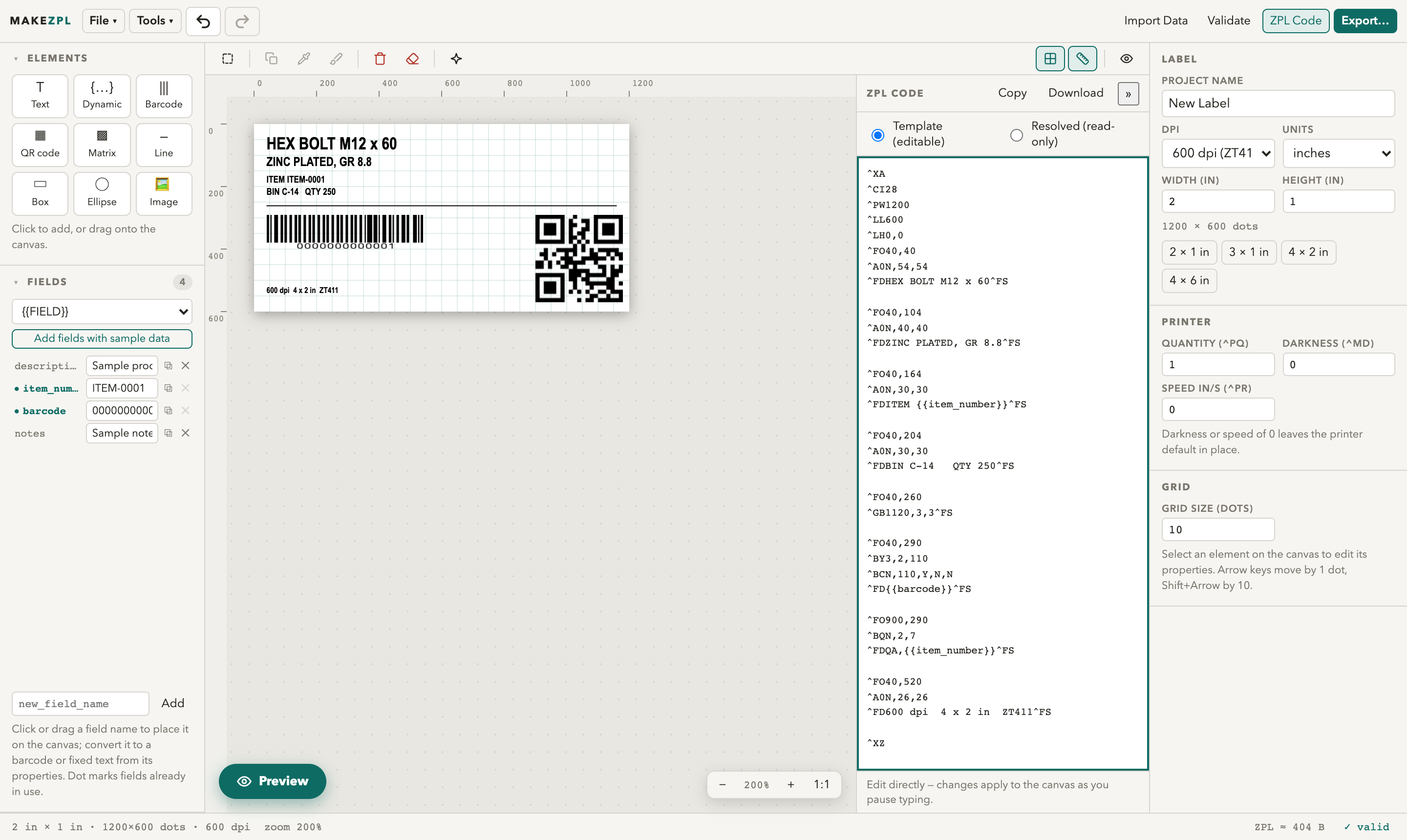
The canvas and the code, side by side
Nothing is hidden behind a proprietary format. The ZPL panel always shows exactly what will be sent to the printer, and you can edit it there instead of on the canvas whenever that is faster.
Supported ZPL II commands
MakeZPL reads and writes plain ZPL II. “Import” means the command is parsed into an editable canvas element; “export” means MakeZPL can emit it. The command reference explains each one in detail.
| Purpose | Commands | Import | Export |
|---|---|---|---|
| Label structure | ^XA ^XZ ^PW ^LL ^LH ^CI |
Yes — width and length set the canvas size | Yes |
| Text | ^FO ^FT ^FD ^FS ^CF ^A ^FB ^FH |
Yes — ^FT is treated as ^FO |
Yes |
| 1D barcodes | ^BC ^B3 ^BU ^BE ^B8 ^B2 ^BY |
Yes | Yes |
| 2D barcodes | ^BQ ^BX |
Yes | Yes |
| Shapes | ^GB ^GD ^GE ^FR |
Yes | Yes |
| Images | ^GFA |
No — skipped with a warning; re-add the image | Yes |
| Print settings | ^MD ^PR ^PQ |
No — set them in the label panel | Yes |
Anything MakeZPL does not recognise is listed by name in an import warning rather than silently dropped, so you always know what did not survive the round trip.
Your labels stay on your machine
MakeZPL is a static web app. There is no backend, no database and no account, so there is nowhere for your data to be sent. Layout, barcode rendering, data merge and ZPL generation all happen in the browser tab.
One exception, stated plainly: the optional AI auto-design feature calls an AI provider using an API key you supply, and sends only your field names and sample values. The key is stored in your browser’s local storage and never leaves it otherwise. Skip the feature and MakeZPL makes no network calls at all after the page loads. Read the full privacy note.
Frequently asked questions
Short answers about pricing, privacy, printers and data merge.
Is MakeZPL free?
Yes. MakeZPL is free to use, with no account, no trial and no per-label limits. It is a static web app, so there is nothing to buy and nothing to subscribe to.
Does my label data leave my computer?
No. Everything — layout, data merge, barcode rendering and ZPL generation — runs in your browser. Nothing is uploaded to a server. The one exception is optional AI auto-design, which sends only field names and sample values to the AI provider whose API key you supply yourself.
Which Zebra printers does the generated ZPL work with?
MakeZPL emits standard ZPL II, so it works with Zebra printers that accept ZPL II — including the ZD421, ZD621, ZT230, ZT411 and ZT610 families — as well as ZPL-compatible printers from other vendors. You pick the print resolution (203, 300 or 600 dpi) so dot coordinates match your hardware.
Can I import a ZPL file I already have?
Yes. Paste ZPL or open a .zpl or .txt file and it is parsed into editable canvas elements: text and fonts, boxes, lines, ellipses, barcodes and field blocks. Label size comes from ^PW and ^LL. Embedded ^GF images are skipped with a warning.
How do I print variable data such as item numbers?
Bind an element to a field, then either export a template with placeholders for your host system to fill in, or import CSV/JSON records and export resolved ZPL with the values already substituted. Batch export writes one label per record into a single print file.
Does MakeZPL work offline?
The designer needs no network connection once the page has loaded — all processing is local. Your work in progress is autosaved to the browser's IndexedDB and restored after a refresh, and you can download an editable project file at any time.
Can it convert a logo image into ZPL?
Yes. Drop a PNG or JPEG onto the canvas, adjust the black-and-white threshold until the logo looks right, and MakeZPL packs it as a ^GFA graphic field at the dot resolution you selected.
Why does my text overflow on real data but not on the sample?
ZPL cannot resize unknown values at print time, so auto-fit font sizes in a template export are calculated from sample values only. Import your real records and export resolved or batch ZPL for exact per-label sizing. The Test all records report flags every record that would overflow.
Design your first label now
The designer opens on a blank 2 × 1 inch label at 600 dpi. Change it, or paste in the ZPL you are trying to fix.